


Blog
How To Check Hidden on X: Here Are The Ways


X formally known as Twitter is the most popular social media platform where people worldwide engage in conversation, share thoughts, and connect. But do you know there are many posts hidden on Twitter? Simply put, you can’t see every content including posts, replies, or messages on X. Fortunately, this article will guide you on how to check hidden on X that the platform doesn’t show you.
What are Hidden Posts on X?
Hidden content on X includes the following things:
- Content that contains sensitive things, violence, or nudity
- Spam content or message
- Comments hidden by the tweet’s author
- Tweets break the platform policy
- Private Twitter account
- Low-quality tweets
- Subscriber-only posts
The good news is that you can view hidden content on X(Twitter).
Here is how to Check Hidden on X (Twitter)
So, are you searching for how to check hidden on X? If so, then check out the below section.
How to See Hidden Replies on Twitter (X)?
Many people use the Hide Reply feature when posting anything on Twitter. Now to check hidden replies on X, first open your X account and search for the specific tweet. Open the tweet in order to expand it. Then click on the three-dot menu in the top right corner of the tweet. Use the dropdown menu and click on View Hidden Replies.
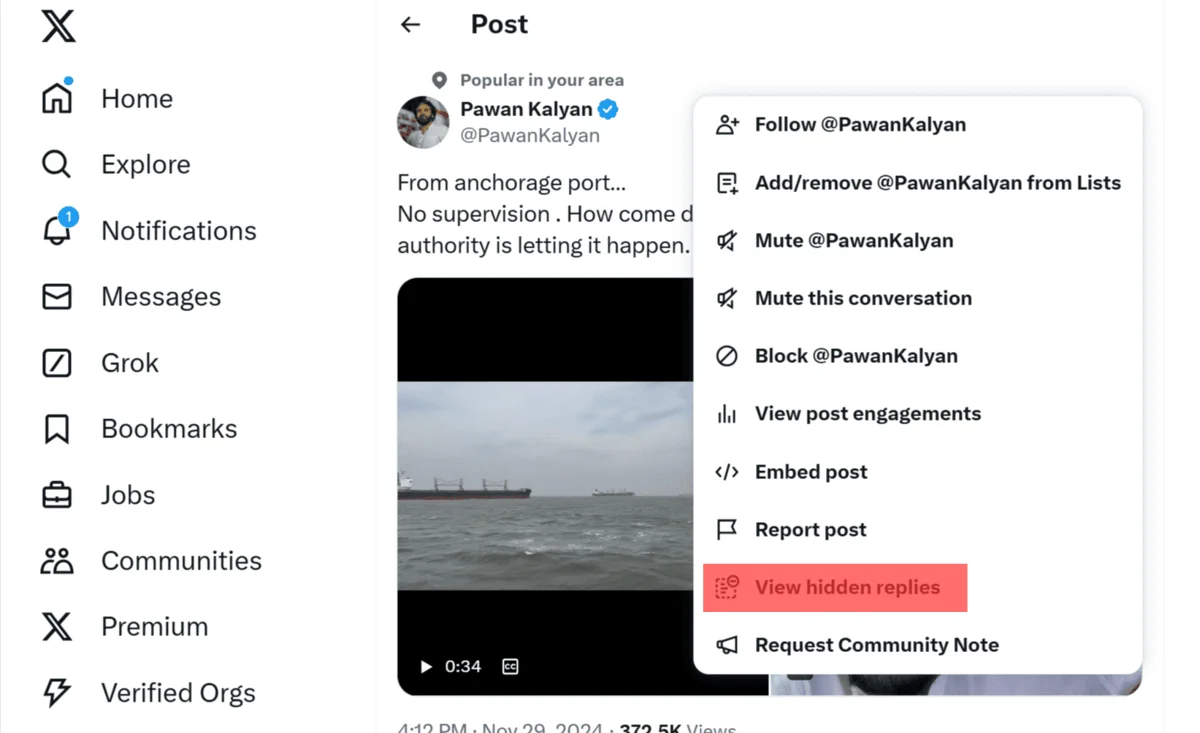
How to View Hidden Posts on X (Twitter)?
Keep in mind that sensitive media that contain visuals or nudity doesn’t show on Twitter. It informs users with a warning level. However, by adjusting a few settings, you can check hidden posts on X. Follow the given directions:
- First, open your X account on a desktop browser
- Navigate to the top left panel and click on More. Under here, select Settings and Privacy from the list of options

- Then click on Privacy and safety and choose content you see option
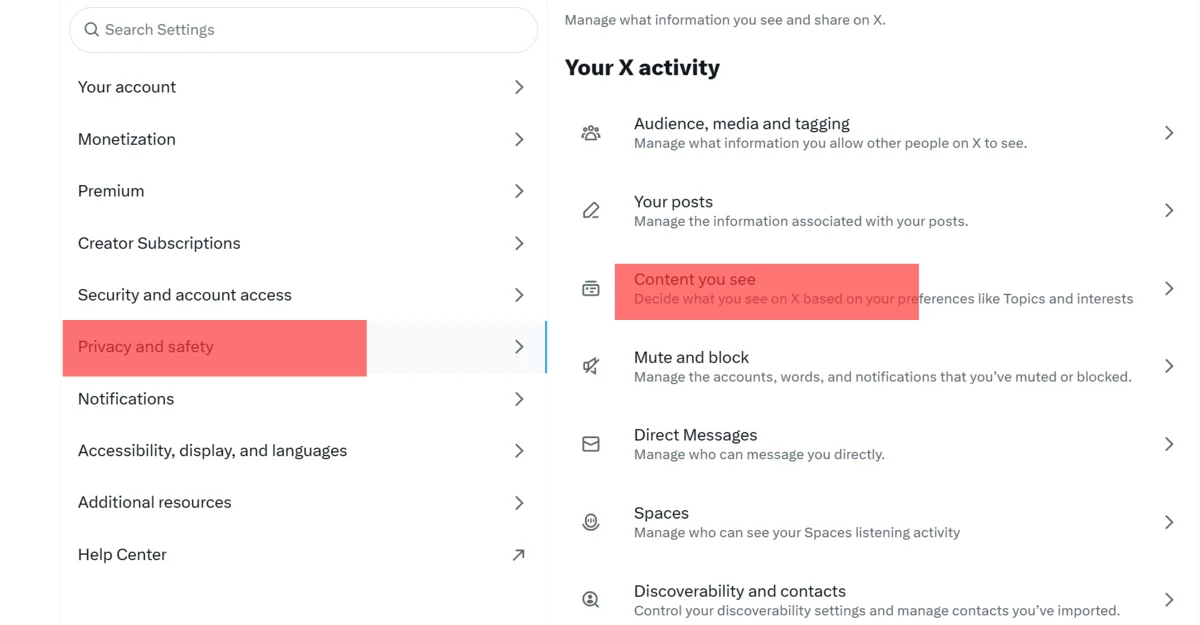
- Mark the box beside the Display media that may contain sensitive content and enable the setting

- Go to the Search Settings page and click on the checkbox beside the Hide Sensitive Content option.

[Note: iOS devices don’t have the sensitive media settings. So, to see hidden posts on X, it is better to open your Twitter account on a desktop browser. However, the changes you made on the desktop browser will apply to your Android and iOS devices. ]
How to View Hidden Direct Messages on Twitter(X)?
Twitter has a low-quality filter that prevents certain direct messages from reaching your inbox and directs these messages to a different folder. Hence if you are missing any DM, we advise you to check the folder. To do so, log in to your X account. Then select the DM folder located in the bottom navigation panel. If you open Twitter on a desktop browser, navigate to the side panel and left-click on Messages. Afterward, you need to left-click on Message Requests which shows the list of Twitter users who sent message requests. Now, to see any offensive content, you need to click on the Show button.

That’s it. If you implement the above-mentioned ways, you can easily check hidden posts on X including posts, comments, or direct messages.
Also Read,
FAQs
How to see hidden content on X?
- Open the X app
- Proceed to the top left corner and click on the Profile icon
- Expand the Settings & Support section
- Under here, drop down and select Settings and Privacy
- Tap on Privacy & Safety
- Click on the content that you want to see
- Enable Display media that might contain sensitive content
How to check hidden X?
By deactivating the default sensitive content filter on Settings, you can see hidden content on X. Also, you need to join the creator’s subscription service to view subscriber-only tweets.
Can you see hidden comments on X?
Generally, only the author of the post can see the hidden comments. However, you can see the comment by clicking on the View Hidden Comments option located at the bottom of the comment section.


